The importance of peers at the work place

tl;dr: What?

I cannot stress how important it is to have someone to share your accomplishments / suffering with at work. Often overlooked, this is one of the most important feats to look for in your future employer’s offering. Make no mistake about it.

Case in point

I was having a really hard time today with some of Croportal’s partner feeds. Two unrelated issues came up, both having something to do with parsing Atom feeds using Zend_Feed:

  • A certain site published it’s feed in Atom format using non-absolute URIs within the <content> element. That’s not a problem per se, since the spec allows it (and defines how to deal with that). However, Zend_Feed has no knowledge of what’s going on (and that’s probably ok, since it’s a general purpose lib). However, publishers place whatever HTML content they want within their <content> element and expect the same behaviour from aggregators as they get from browsers when they open their feed URLs in them (ie. Firefox). This means you have to do a shitload of “magic” on your end. And that shit ain’t trivial.
  • Another site published their feed using Atom as well, except they decided to use the (rarely used) <content type="xhtml"> feature of the Atom protocol. Which is all fine and dandy untill you actually have to pull the content and display it on your end (being an aggregator). The spec is somewhat vague and yet pretty specific at the same time. Except it doesn’t cover what to do in cases such as this:
    ...
    <content type="xhtml">
       <div xmlns="http://www.w3.org/1999/xhtml">
          <p>Paragraph with an <img src="whatever.jpg" /><![CDATA[This is <strong>XHTML</strong> content.]]></p>
       </div>
    </content>
    ...

    Which kind of sucks, since you’re on your own now. I have an actual publisher with such a feed. And the feed validates. What does one do? Well, you start introducing crap code into your codebase. Shit such as this, to handle the case described above:

    ...
    if ($item->content && $item->content['type'] && $item->content['type'] == 'xhtml') {
        $item_simple = simplexml_import_dom($item->content->getDOM());
        $item_summary = $item_simple->asXML();
        // end-tag is fixed in form so it's easy to replace
        $item_summary = str_replace('</content>', '', $item_summary);
        // remove start-tag, possibly including attributes and white space
        $item_summary = preg_replace('/<content[^>]*>/i', '', $item_summary);
    }
    ...

    This sucks on so many levels it’s not even funny. Zend_Feed’s $item->content() method returns only the raw text, but my use case requires the surrounding elements as well (images etc). So, I hack my way around all this using SimpleXML which allows me to (somewhat) easily dump the structure into a somewhat acceptable form of HTML.

    Of course, later on you have to call strip_tags() on content such as this (to display it safely on your end), but — surprise, surprise — you run into another issue: if you have a <![CDATA[ string anywhere within a larger string that you call strip_tags() on, you’re gonna get an empty string back as a result. How’s that for fun, eh? This is where you start pulling your hair out and thinking male prostitution ain’t such a bad line of work after all.

Folks, I’m not making this shit up. This is real world PHP on a (relatively) large scale project.

End result

Several hours and hundreds of lines of code later — both issues are fixed. And everything works flawlessly. Except no one but me is aware of the fact.

No one in the entire company hasn’t got a fucking clue about what has transpired today. Or why shit like that matters. Or how much future money it has saved. Or that I’ve written an URL parser library that can be used generically for any possible scenario that deals with relative/absolute URL conversion, URL joining, URL parsing etc.

Worst of all, no one could hear (and understand) my cries about how horribly broken Zend_Feed, parse_url(), strip_tags(), DOM etc. are.

Wordpress core update not working? Suhoshin might be the reason.

Ran into some trouble trying to update to the latest version (2.8.6). The automatic core updater kept dying on me with nothing but an ‘Unpacking update’ message. Nothing in the error_log file, no core dumps, no warnings, just stuck. And it used to work flawlessly until now.

Anyways, it’s sorted now — and updated — but here’s the scoop in case someone else runs into a similar situation:

Wordpress tries to increase the memory limit of php to ‘256M’ during the unzipping process of the update. If you’re on a shared hosting setup, chances are it’s running php with the suhoshin patch. Suhoshin was (and still is) set up to prevent raising the memory limit via ini_set() over the size defined in php.ini (currently at 32M).

Solutions:

  • Ask your hosting company to temporarily increase or remove the suhoshin-patch limit, run the update, let them revert the limit back (over in 2 minutes)
  • Modify your ‘wp-admin/includes/file.php:484′ and try setting a lower limit (128, 64?) and see if the update process manages to extract all the files successfully (it probably will)
  • Update your wp manually

Pyrrhic victory: me vs customs office – 4:1

Latest Threadless package arrived, 9 t-shirts this time. I think this will be my last order from them. Ever. They seriously need to re-think the t-shirt quality. As it stands now, it’s nowhere near what it used to be, and that’s unacceptable. This last batch is thin cotton bullshit. But the designs are what they are, so I caved and got this last batch of reprints I just had to have.

Anyways, no extra charges from the customs this time. Package value stated as 108 USD, package opened as usual, no gift wrapping options, no nothing. I win! Kind of.

Perfect Pitch

Just a short blurb in hopes of helping Adactio get that perfect pitch. You should probably link to it as well, if you’re inclined to fighting SEO-motivated DMCA takedowns. What a load of crap.

Twitter lists — what they’re really about

Twitter lists have hit the interwebz recently. Cool, I guess.

Everyone’s talking about whether they should be public or private, if it’s all just another pissing popularity contest, how the “a-list” is getting even more popular, if it means this or that… None of it matters.

What everyone hasn’t yet picked up on (but they will, eventually) is this: Twitter just added people tagging. What? Yes, people tagging.

And it couldn’t be easier, and the users aren’t even aware they’re doing it, and practically every existing and future twitter user will do it at some point. Just imagine the power of having that kind of data. Every user tagged with their interests, location, whatever you need. It’s priceless.

Think about it. Twitter is (mostly) about people. To create a list, you need to name it. Adding someone to that created list is just a click away, and you’ve just made a “tagging” statement about that person. You’ve assigned a topic/name/whatever (a tag) to a person.

Now Twitter will know how (what/who/when/with etc.) others associate with you. And they’ll know what you associate with others. Those tags describe you, and your group to the point of being practically exact science (after a while of gathering data). That means your and actions of those around you become easily predictable — or at the very least — “guidable”.

Once they have that kind of data, getting a 1$ or 10$ revenue per user (that’s Twitter’s “plan”) is peanuts. No one else has that kind of data. It’s no wonder every major player in the business decided to strike a deal about “real-time data” with them.

P.S.
What they’ve done with the API ecosystem is equally amazing. The Twitter experience has nothing to do with the twitter.com website, and everything to do with applications built by third-party developers. That’s for a reason too — you can’t focus on the core of your business while you’re being pestered with phone X not supporting feature Y or browser Z not playing nice on platform W.

The core business is gathering and munging incredible amounts of structured data about people, not relaying 140-character-long messages. Don’t forget that.

Solving The Existing UUID Error For Running Multiple IEs

Several readers reported running into troubles trying to install multiple VMs with different IE versions (following my previous howto).

Installing one works just fine, but when you try to create another VM using another one of those Microsoft’s .vhd files you run into an error: VirtualBox is complaining about a hard disk with the same UUID already existing and whatnot.

Having separate VMs for separate browser versions is a nice thing to have, but it’s not possible by default, because all of Microsoft’s .vhd files have the same UUID.

Here’s how we can work around that, until Microsoft decides to change UUIDs, or until Sun’s undocumented and unsupported command (VBoxManage internalcommands sethduuid <file>) starts working on .vhd images.

Convert your .vhd images

The process consists of converting our .vhd images (which are basically vpc images) into .vmdk images, which automagically gives them a new UUID.

First we install Qemu:

sudo apt-get install qemu

After that, change into the directory holding your .vhd image and run:

qemu-img convert -f vpc image.vhd -O vmdk image.vmdk

That’s it, now you can use the newly created .vmdk images as hard disks for your additional IE virtual machines. Have fun.

Screwed.

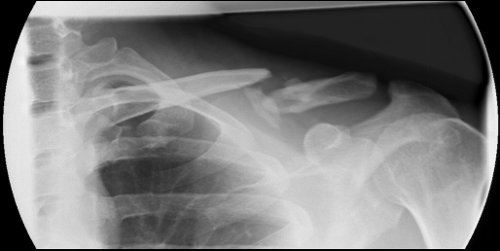
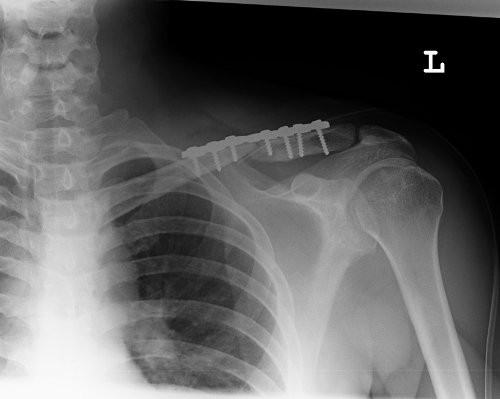
Before (23.02.2009 10:03; morning of the surgery):
before_surgery

After (23.02.2009 14:10; right after the surgery, about 10mins after I woke up from narcosis):
Screwed. Clearly.

Getting another x-ray probably on Friday, to see if it healed ok and if I can start physiotherapy finally.

HOWTO: Running IE6, IE7 and IE8 On Ubuntu Intrepid (8.10) Using VirtualBox

Intro

Being able to check how stuff behaves in various versions of Internet Explorer is unavoidable. Switching to Ubuntu recently made me painfully aware of that fact (again).

This (somewhat illustrated) HOWTO details what one must do in order to be able to easily test their stuff in various versions of Internet Explorer on Windows XP SP3 (without having to reboot, switch computers or paying someone else to do it) while still happily having only Ubuntu installed on their machine.

We’ll be using Sun’s VirtualBox software and Microsoft’s Internet Explorer Application Compatibility VPC Images so lets get on with it.

Downloading and installing VirtualBox

If you don’t like the closed-source idea, compare the differences and try with the OSE version. Let me know how it goes.
Update: Phil’s results aren’t pretty. If you’re also seeing BSODs, you might want to try some workarounds.

If you’re comfortable with installing closed-source (binary) packages continue by adding Sun’s public key:

wget -q http://download.virtualbox.org/virtualbox/debian/sun_vbox.asc -O- | sudo apt-key add -

And adding the following line to /etc/apt/sources.list:

deb http://download.virtualbox.org/virtualbox/debian intrepid non-free

Install VirtualBox, accepting prompts (to create the vboxusers group and compile the kernel module):

sudo apt-get update && sudo apt-get install virtualbox-2.1

virtualbox-install-done2

Now add your user to the newly created vboxusers group:

vboxusers-properties

GUI way: System > Administration > Users And Groups > Unlock (type in your password) > Manage Groups > vboxusers > Properties. Check the checkbox next to your username. Close all (not by cancelling though).

CLI way:

groups <username>
# you will get a list of groups for that username
useradd <username> -g <first group in list> -G <second group>,<third group>,...,vboxusers

Reboot, or logout and log back in (might work). Reboot is the safe bet.

Downloading and extracting Microsoft’s Virtual Hard Disk images (VHD)

Current VHD images can be found here: http://www.microsoft.com/downloads/details.aspx?FamilyID=21eabb90-958f-4b64-b5f1-73d0a413c8ef&displaylang=en – the URLs will probably change (expire), but these VHDs should work until April 2009. I’m installing WindowsXP SP3 images, although Vista images are also available (check the previous link and explanations there for Vista).

(yes, the last two have lower-cased extensions, who knows why)

Create a folder to store the VHDs and download the one you need:

mkdir -p ~/VMs && cd ~/VMs
wget -bqc http://download.microsoft.com/download/B/7/2/B72085AE-0F04-4C6F-9182-BF1EE90F5273/IE8-XPSP3.EXE

Once they’re downloaded, extract them using unrar:

unrar e IE8-XPSP3.EXE XP_SP3_IE8/

xp-sp3-ie8-extract

You can delete the .exe files after extraction, they’re not needed any more.

Creating the Virtual Machine

Time to start VirtualBox (Applications > System Tools > Sun xVM VirtualBox). Create a new virtual machine by, you guessed it, choosing New. Name it and set the Operating System to Windows XP.

virtualbox-vm-naming

Assign some RAM (keep it under half of your physical RAM).

virtualbox-vm-memory

At the Virtual Hard Disk screen choose Existing to open the Virtual Media Manager. Choose Add and select the VHD file you extracted earlier. Choose Select to close the Virtual Media Manager.

Choose Next, then Finish and you’ll return to the main VirtualBox window which should now list your new Virtual Machine.

virtualbox-vm-wizard-final-step

Configuring the new Virtual Machine

Optional: select it, then choose Settings (available on right-click as well). General should be preselected on the left, increase the Video Memory Size and enable 3D acceleration on the Basic tab. Click OK to close the Settings, and click Start to power up your new virtual machine.

Once it boots, cancel out any dialogs, prompts, windows, etc.

Go to Devices > Install Guest Additions (it’s in the window’s menu bar). Follow the prompts accepting defaults and you’ll have installed VirtualBox additions. When prompted, reboot the machine. If it doesn’t prompt you, go to Machine > Reboot (menu bar again).
Once it reboots, click OK on the mouse pointer dialog thingy (you will not have to manually capture the mouse again, nice!).

Now go to Start > Run and paste the following in there:

D:\VBoxWindowsAdditions-x86.exe /extract /D=C:\Drivers

The above extracts some default drivers into the virtual machine’s c:\Drivers folder which we’ll need to set up the Ethernet adapter.

Now go to Start > Administrative Tools > Computer Management and select the Device Manager there. Navigate to Network Adapters, Ethernet Controller. Right click it and choose “Update Driver…“. Select “Yes, now and every…” and click Next. Select “Install from a list or specific location“, click Next. In the Location box paste in “C:\Drivers\x86\Network\AMD” or navigate to it manually. Click Finish.

You should have a working ethernet connection now. Fire up IE 8 and test it out!

Here’s a screenshot:
Screenshot of a Running IE8 install on Ubuntu using VirtualBox

If all went well, we’re done here!

Parting thoughts

When closing the VM choose “Save the machine state” if you wish to avoid waiting for all those boot screens the next time you start the VM.

Virtualization rules.

How I spent my day today

Woke up today with a great idea: having some spare prehistoric hardware laying around I was gonna build a crappy box and install Ubuntu 8.10 on it. Why?

  • I have the time
  • I wanna see what’s changed since the last time
  • I need a *nix box to try some video streaming stuff locally

Building the box took a bit longer than I anticipated at first (using only one hand to screw/unscrew stuff SUCKS). After about an hour, I had:

  • an Athlon XP 1100 (TB)
  • on an Epox ep-8rda+ mobo (nforce2 chipset, onboard lan and sound)
  • with a GeForce 4200 Ti AGP gpu
  • and a 60 GB seagate hdd
  • and a cd-rom of course
  • (was pondering a floppy drive for the fun and looks of it, but couldn’t find any)

I was ready to boot. The box refused.

Beeping like crazy, flashing codes on the mobo, it was RTFM time. Except I couldn’t, cause all the epox sites are gone, and the only manual I managed to find online was in Russian.

Desperate, I just took the CMOS battery out, praying it would reset everything and magically work. While waiting for the battery, I figured I might as well vacuum all the dust out. So I did. Guess what else I picked up.

After taking the vacuum apart and finding the battery inside the vacuum bag, I plucked the battery back in and took a deep breath. Tired, one-handed, frustrated and covered in dust I pressed the power button. IT BOOTED. Wooohoo!

The WindowsXP installed on the disk is from 2004 apparently. After reminiscing for about an hour (and backing up shit I’ll probably never need anyway), I wiped the C: partition and it was now Ubuntu time.

Booted Ubuntu in live-cd mode, it looked ok (although slowish, but that was expected), so I clicked “install”, which was conveniently placed on the desktop. Step 4/7 is the partitioning stuff — it didn’t work, just kept getting stuck with no output whatsoever in the “combobox” interface.

OK, reboot the machine and tried installing from the cd boot menu (the 4th step worked now). Installed. Updated the repos, updated the whole system (250+ MB download). That was around 2pm.

Installed ssh, enabled remote desktoping to the ubuntu box, and that’s where I should’ve stopped (and should’ve started installing webdev stuff via ssh and just forget everything else).

But no. I just had to see if I could install nvidia drivers and enable desktop effects. I could never get those to work. On any distro I tried. Ever. And I really want to see it live.

Bad idea. It’s now midnight, and I still haven’t managed to get the fucking thing to work. Giving up for today.

Other than that though, Ubuntu is looking really good.

This is my orthosis.

shoulder-arm-orthosis
This is my orthosis.
There are many like it, but this one is MINE.
My orthosis is my best friend. It is my life.
I must master it as I must master my life.
My orthosis without me is useless.
Without my orthosis, I am useless.